Unable to sign in
Troubleshoot login issues by checking app updates, network connections, and third-party sign-in settings.
If you're not able to sign in, or the sign in button is not showing, here are some tips to check and fix the issue:
- Upgrade to the latest version of Notewise. Make sure that you're using the official app downloaded from Google Play, App Store or our website.
- Verify that you can access other Google services without issues.
- Check your device for any apps that might interfere with internet activity, such as VPNs, ad blockers, firewalls, and network monitoring tools.
- Try switching your network: Use both Wi-Fi and mobile data to see if the issue persists.
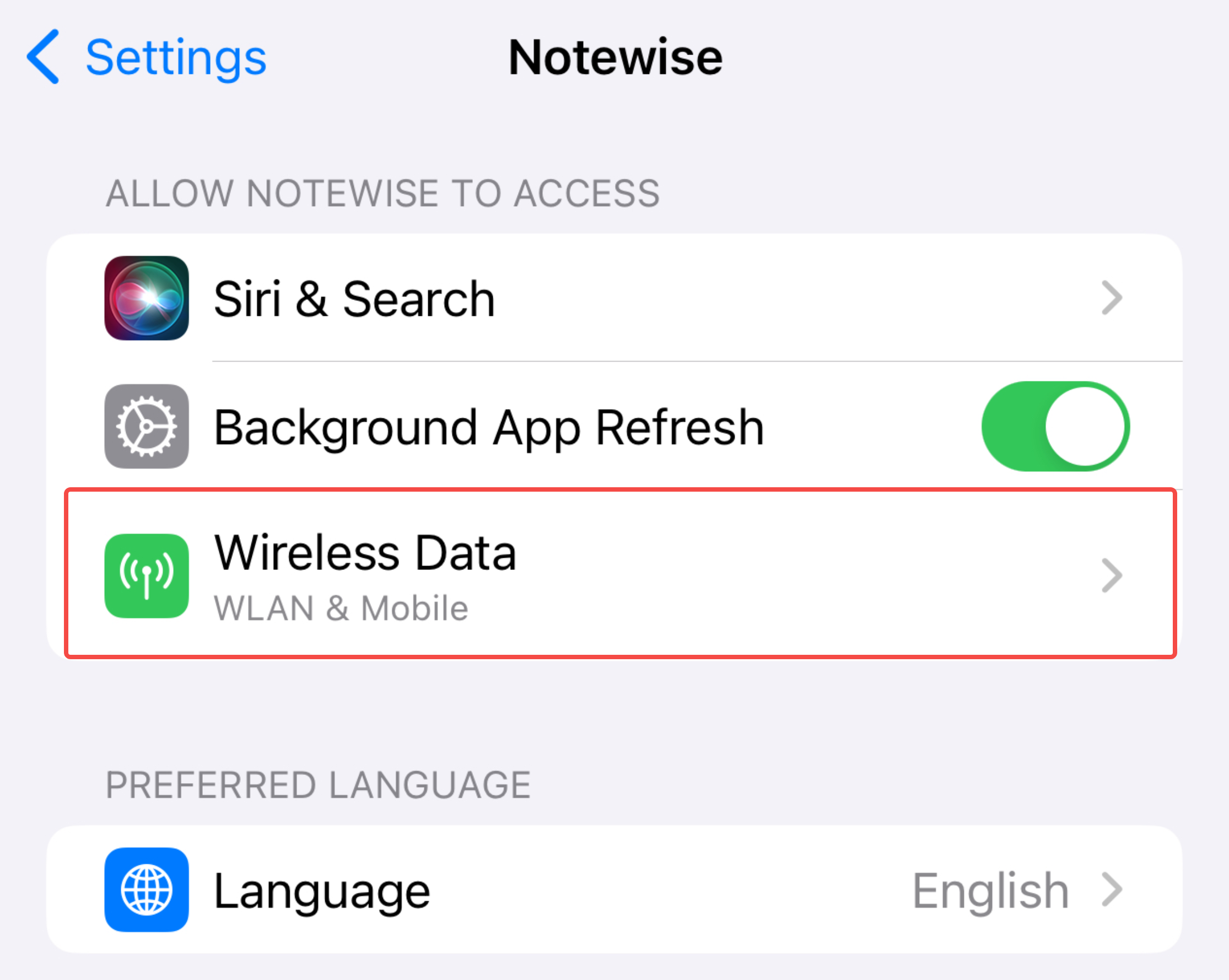
- On iOS, make sure that you've enabled network access for Notewise.
- On Android, Google Sign-In requires your device to have at least one Google account signed in. Microsoft Sign-In requires your device to have a working browser.
- On Android, update your device's Google Play System Update to the latest version (Tap to learn more). This is required to show the Google Sign-In prompt.
- Tap Security & privacy and then System & Updates.
- For security updates, tap Security Update.
- For Google Play system updates, tap Google Play system update.
- Make sure to restart your device a few times after updating to the latest Google Play System Update.
If you saw an error message when the sign in attempt fails, please check the following error message:
- User disabled the feature: This is typically because you've disabled the third-party sign in option with Google. You may go to your device's Settings > Google > Settings for Google Apps > Connected Apps > Tap on the gear icon > Enable Sign In prompts. Also, make sure that inside the Connected Apps page, search Notewise and enable Sign in with Google.
- An account already exists with the same email address but different sign-in credentials: This is because your account has been signed in before using a different provider (Google or Microsoft). One email address can only be linked to one social provider, therefore you may sign in only using the same provider as the last one.
- Missing feature / Missing d...: This is because your device doesn't support the Google Sign-In prompt. Please make sure that:
- Your device supports Google services
- You've installed the latest system update and Google Play system update.
Please note that if your Microsoft account is registered with a Google account (ending in @gmail.com), you must use Google sign-in instead of Microsoft sign-in.