Restore purchase for Notewise Classic Unlimited
Sync your Notewise Classic Unlimited subscription by using the Restore Purchase button while signed into the same Apple ID or Google Play account used for the original transaction.
Before You Begin (Important)
Update the app: Make sure you’re using the latest version of Notewise.
Avoid reinstalling: Uninstalling and reinstalling may cause data loss unless you’re using Notewise Cloud (learn more).
Platform notice: Notewise Unlimited cannot be shared between Android and iOS devices. Purchases are platform-specific (learn more).
Since Notewise Classic Unlimited is a one-time purchase, you do not need to pay again. However, you will not be able to use Classic Unlimited until your current Notewise AI & Cloud subscription expires (including free trial).
Log out from Notewise AI & Cloud Plan: The Classic Unlimited Plan does not require you to log in to an account in the app. Please log out of the app before restoring your purchase.
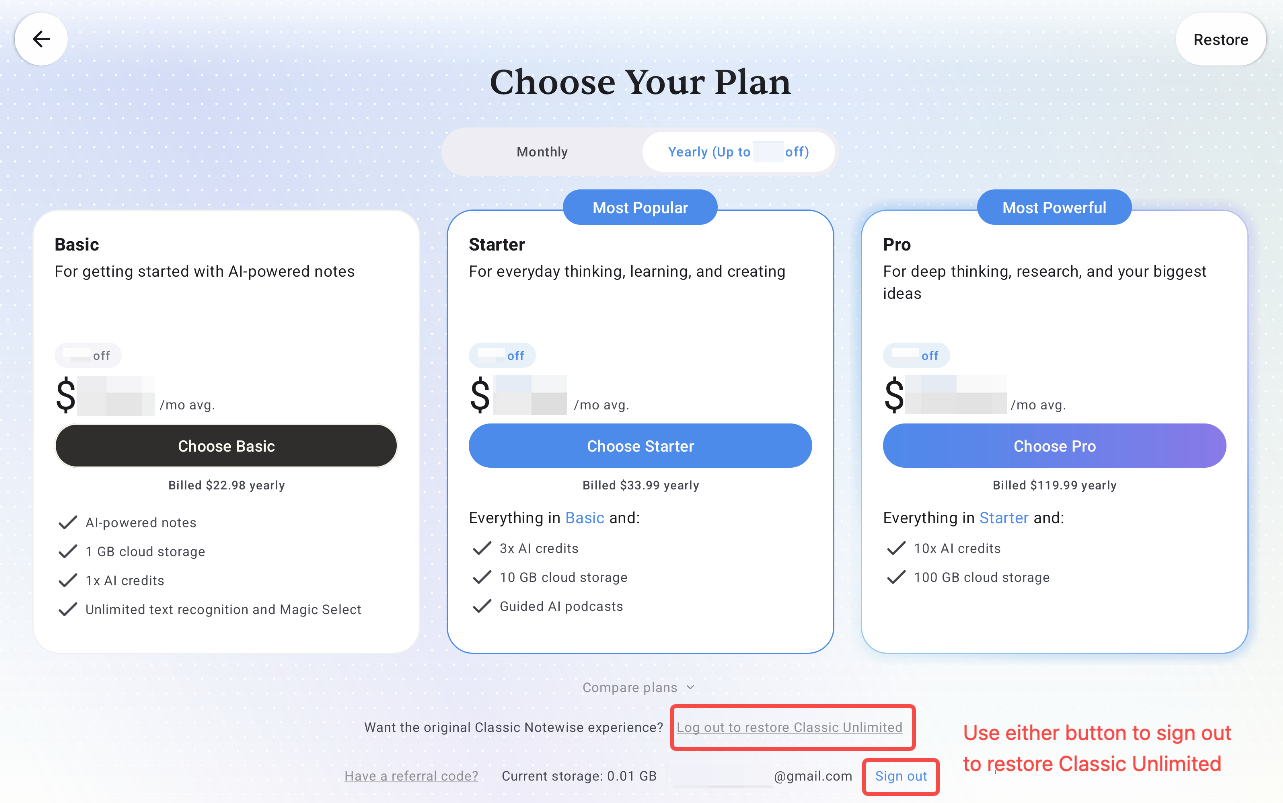
Sign out to restore Classic Unlimited
Android Users — Google Play Purchase
If you purchased Classic Unlimited through Google Play, your purchase is linked to the Google account used at checkout.
Notewise normally restores your purchase automatically. If that doesn't work, you can now restore Classic Unlimited manually using your Google Play order number.
1. Restore Automatically
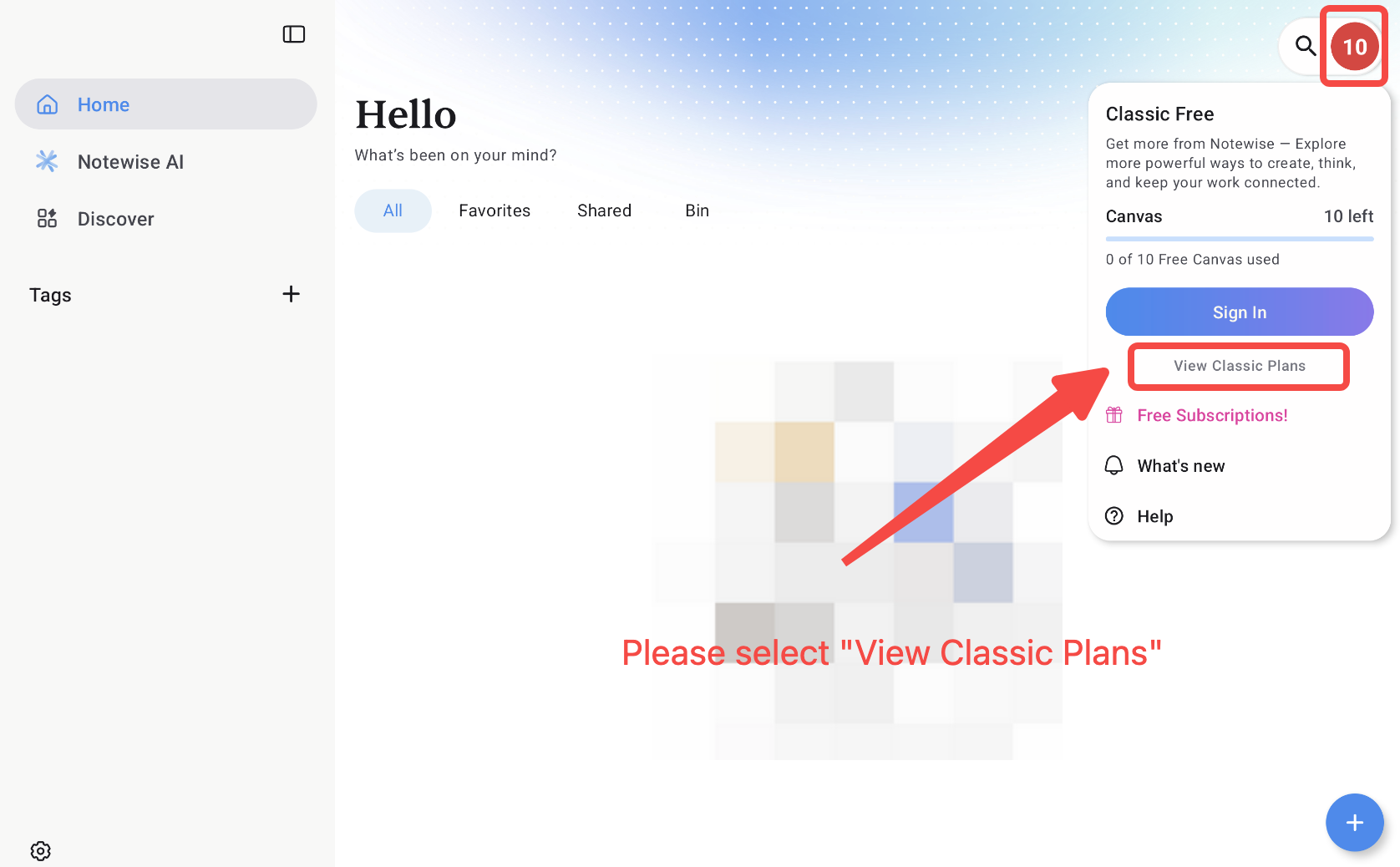
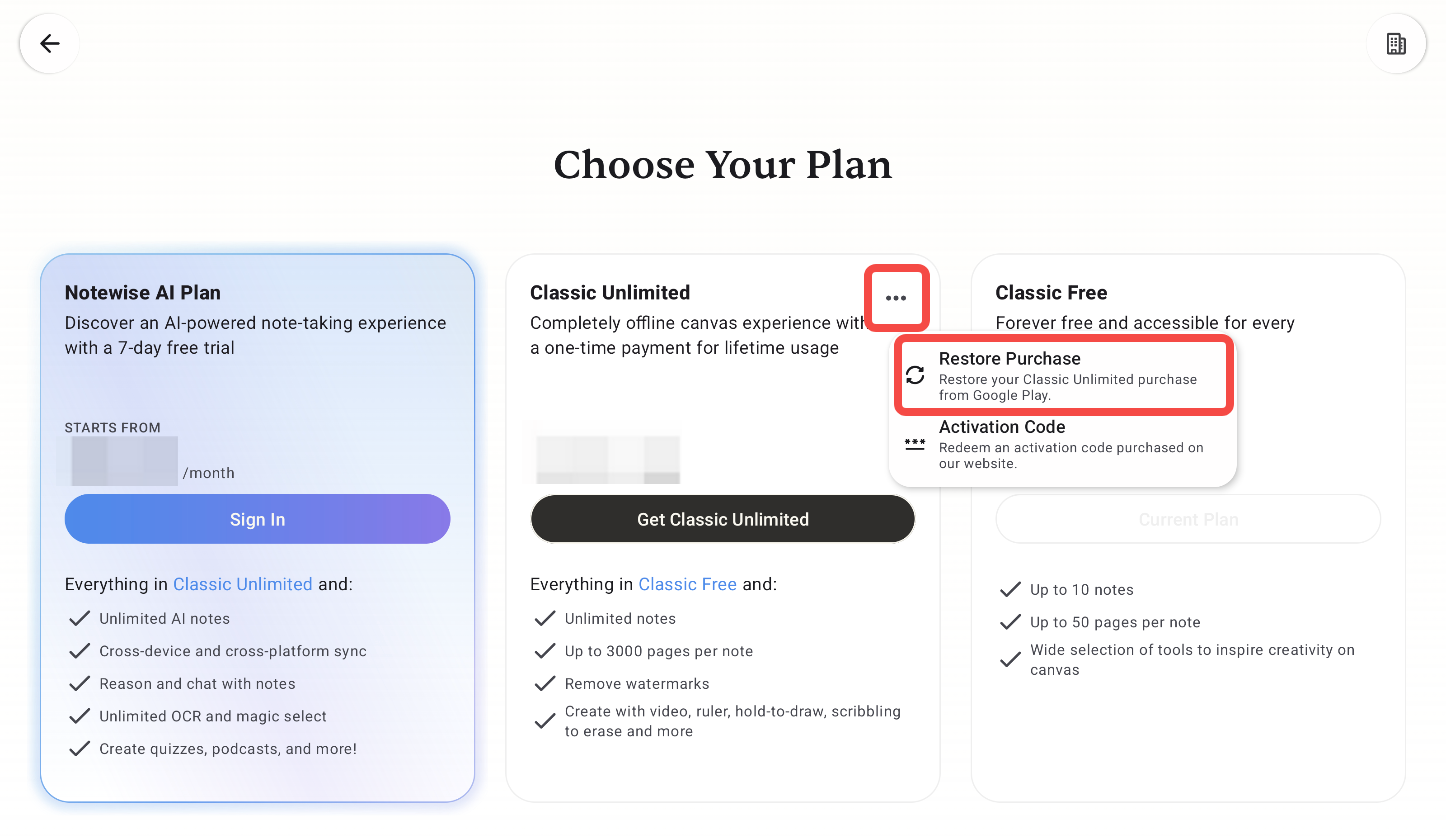
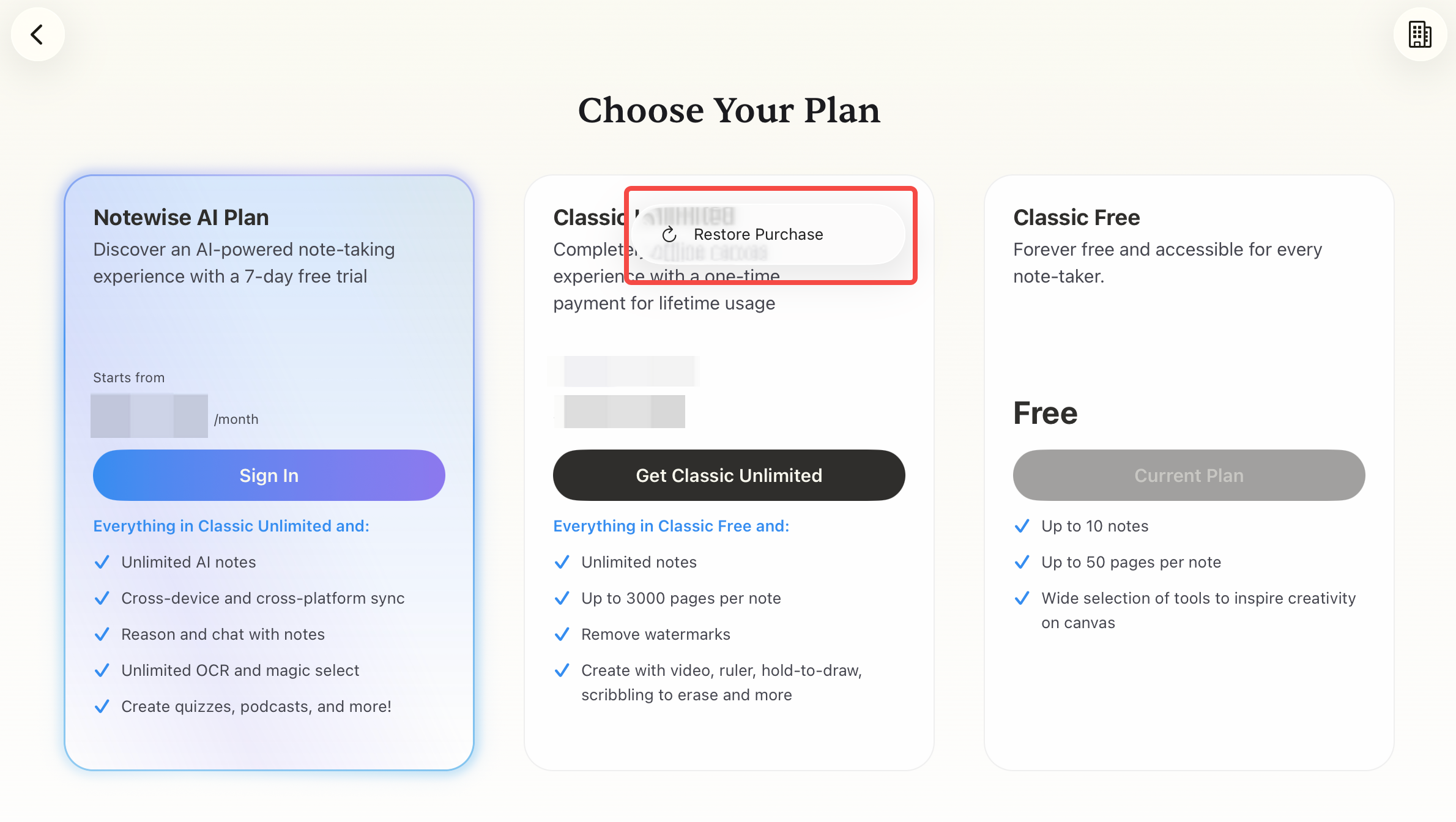
Open Notewise, go to the Classic Unlimited purchase page, and tap Restore Purchase.
Make sure Google Play is signed in with the account used for your original purchase.
2. Restore with Your Google Play Order Number
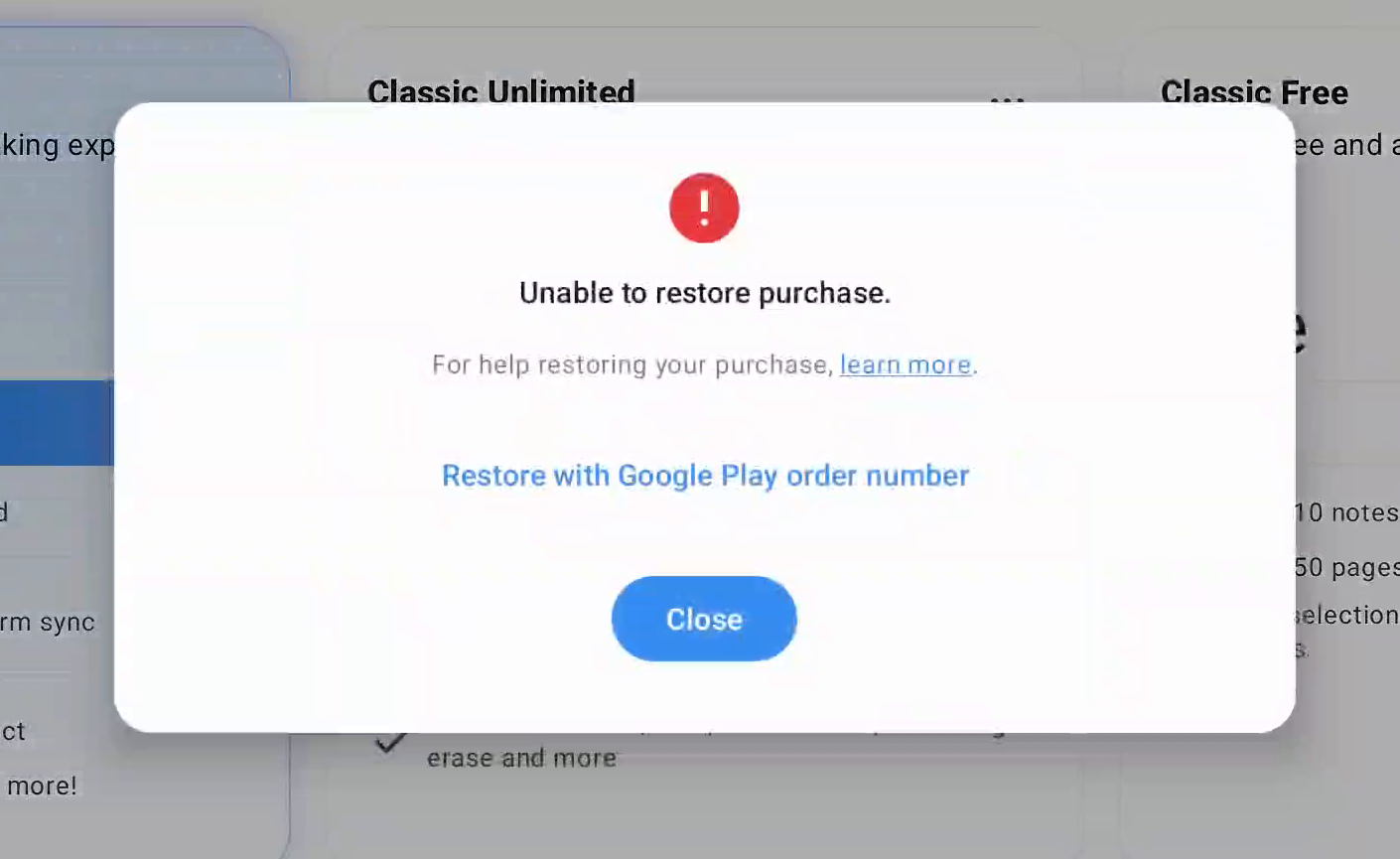
If automatic restoration fails, you can now restore your purchase manually (Notewise 4.1.5 and above):
Tap Restore with Google Play order number when the automatic restoration fails.
Enter your Google Play order number (e.g.,
GPA.1234-5678-9012-34567).Tap Restore to verify your purchase.
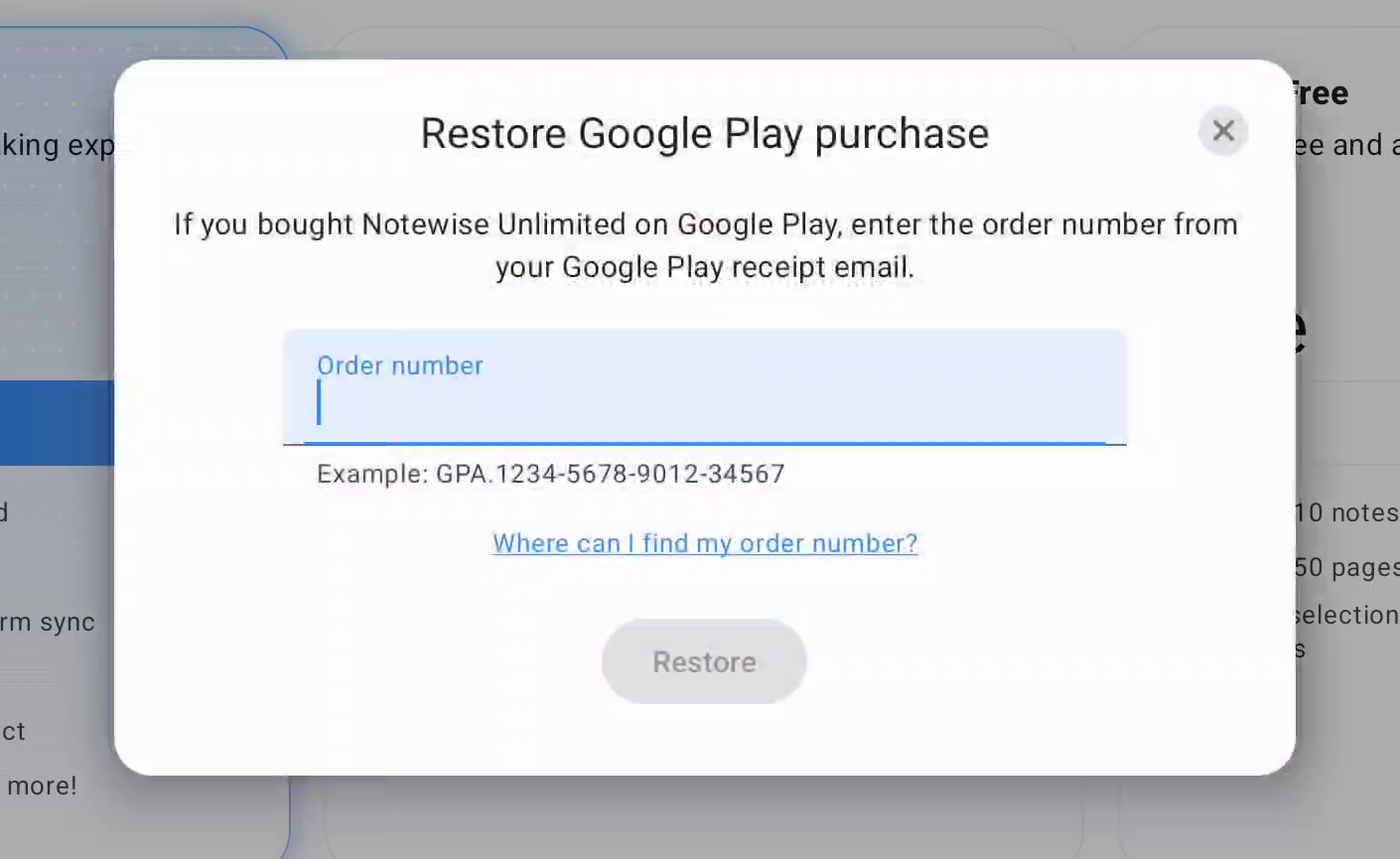
Where to find your order number:
Email receipt: Search your Gmail for "Google Play" or "Notewise" and locate your original purchase confirmation.
Google Payments: Visit payments.google.com → Activity, then open your Notewise transaction.
Make sure you're using the Google account that originally purchased Classic Unlimited.
Important: Keep your order number private.
Your order number is proof of purchase and must not be shared with others. Notewise uses automated abuse detection to prevent unauthorized restorations. If an order number is shared or abused, it may be permanently disabled from future restorations.
Still Having Trouble?
If neither method works:
Check that you're using the correct Google Play account. If you have multiple Google accounts on your device, try switching to the purchasing account.
Restart your device and try again.
Try clearing the Google Play Store cache (not Notewise's app data).
If the issue persists, please contact Notewise Support.
Android — Website (Stripe) Purchase
If you purchased Classic Unlimited directly through the Notewise website (https://www.notewise.dev/pricing) or Stripe, please follow this FAQ to enter activation code within the app.
iOS Users
If you purchased Classic Unlimited through the App Store, your subscription is linked to your Apple ID. Notewise retrieves your purchase information directly from the App Store.
If Unlimited isn’t showing after purchase, tap Restore Purchase on the Unlimited purchase page (See the screenshot below for guidance).
If Restore doesn’t work or you see an error:
Ensure you’re signed in with the same Apple ID used for the purchase.
Purchases from other Apple IDs cannot be restored.
Restart your device.
Sign out and back into Media & Purchases:
Go to Settings > [Your Name] > Apple ID > Media & Purchases → tap Sign Out, then Sign In again.Check your Purchase History:
If you use multiple Apple IDs, sign in with the one you used for the Notewise purchase.
If none of the above resolves the issue, contact Apple Support for further assistance.
Was this helpful?
Still need help? Ask the team