Getting Started with Text and Handwriting Recognition
Unlock the full potential of your notes with Text and Handwriting Recognition. Powered by Notewise AI, this feature allows you to digitize text from handwriting, scanned documents, and images—making your notes searchable and fully interactive.
What can Text Recognition do?
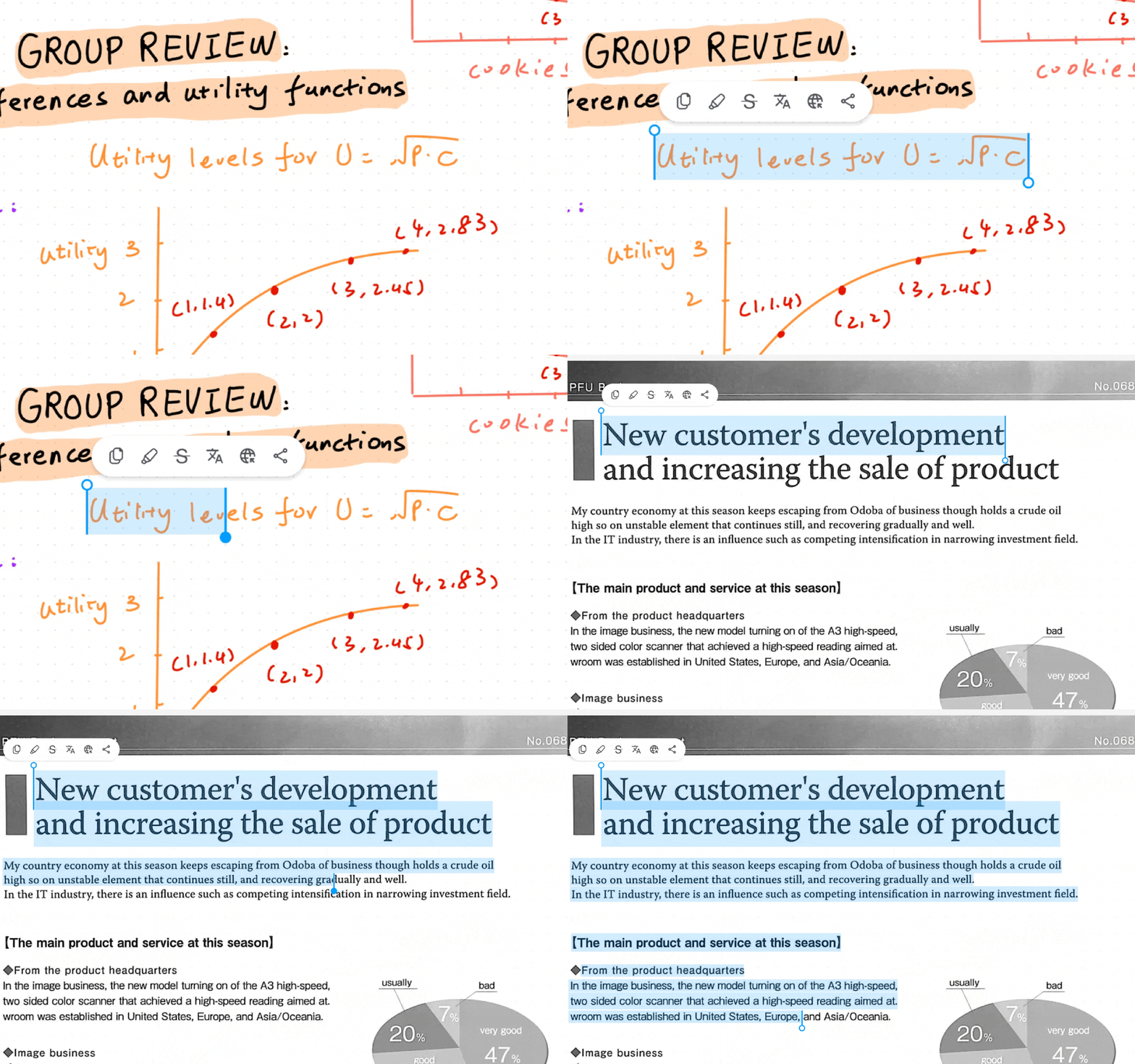
Once processed, your handwritten notes and images become "readable" digital text. This allows you to:
Search: Instantly find specific keywords within your handwriting or imported PDFs.
Copy: Convert handwriting to text and copy it to your clipboard.
Translate: Select text directly from a document or drawing to translate it into another language.
Note: This feature is only available to Notewise Cloud users and requires access to Notewise AI. Please ensure you’re on Notewise Cloud subscription with AI features.
Step 1: Set Your Recognition Language
To ensure the AI understands your handwriting accurately, you need to set your primary language first.
Open Notewise Settings.
Navigate to Text Recognition.
Select your primary language from the list.
Step 2: Create or Import Content
Simply take notes, write with your stylus, or import images/scanned documents as you normally would.
Automatic Processing: Text recognition happens automatically in the background.
Processing Time: Please allow approximately 2 minutes for new content to be fully recognized and indexed by the AI.
Step 3: Interact with Your Text
Once the recognition process is complete, you can interact with the content directly:
Select & Copy: Simply long-press directly on your handwriting or image text. A menu will appear allowing you to select the text, copy it, or translate it.
Search: Tap the Search icon and type your keyword. The app will highlight matches in your handwriting, PDFs, and images.
Current Limitations
PDF Text Recognition on Android
Text recognition is performed on a per-page basis.
If a PDF page already contains embedded selectable text, Notewise will use the existing text layer and will not perform OCR on that page again.
If a PDF page contains only images (for example, a scanned document without embedded text), Notewise will automatically perform OCR and recognize the text within those images.
If a page contains both embedded text and images, only the embedded text is searchable. Text that exists only inside images on that page will not be recognized.
Note: Make sure your Recognition Language is configured under Settings > Text Recognition, otherwise OCR will not process handwritten notes or image-only documents.
Handwriting: This limitation does not affect your handwritten notes. As long as the correct recognition language is selected, your handwriting will be processed automatically.