How to Use "Circle to Lasso"
Select and move your notes quickly without ever switching to the Lasso Tool!
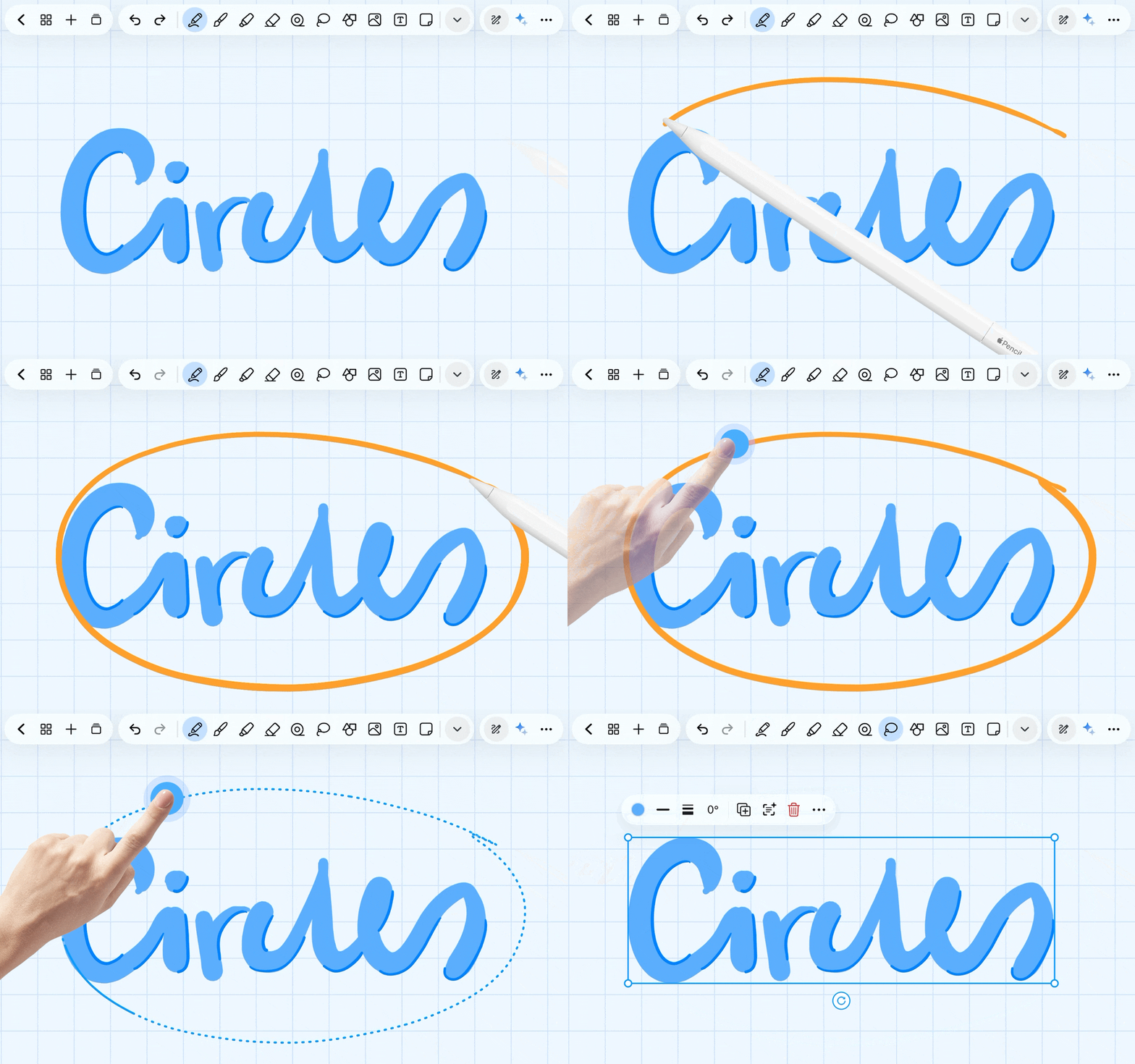
1. Enable the Feature
Tap the Pen tool icon to open settings, then toggle on Circle to lasso. (It is turned off by default).
2. Select & Move
Draw & Hold: Draw a circle around the content you want to select, and hold your stylus/finger down at the end of the stroke.
Wait: A quick animation will play, followed by a selection box.
Move: Drag immediately to move your selected items! (If your stylus is outside the box, tap inside the box first to move).
3. Quick Tips
To cancel the animation: Just lift your stylus or continue drawing before the animation finishes.
To deselect: Start writing anywhere outside the selection box. The tool instantly switches back to the Pen.
It follows Lasso settings: This gesture respects your main Lasso Tool settings (like "Full selection only" or excluded object types).
Note: It only triggers if your last action was a pen stroke, and it is temporarily disabled when using the Zoombox.