How to view notes in split screen
Learn how to open two Notewise notes side by side on an iPad or Android tablet.
iPad
The following instructions apply to iPadOS 26 or later, which is the minimum iPadOS version supported by Notewise.
Turn on Windowed Apps
Before opening two notes side by side, make sure Windowed Apps is enabled:
Open the Settings app on your iPad.
Tap Multitasking & Gestures.
Select Windowed Apps.
For more information about multitasking and managing windows on iPad, see Apple’s guide: Multitask on iPad with iPadOS 26.
Open two Notewise notes side by side
First, resize or reposition the Notewise window to make room for a second window. You can do this in either of the following ways:
Resize the window manually
Drag the handle in the bottom-right corner of the Notewise window to resize it. You can also resize the window by dragging any of its corners.
To move the window, drag its top edge to a new position.
Use the window controls
If the window controls are hidden, swipe down from the top of the screen to reveal them.
Touch and hold the green window control in the top-left corner.
Under Move & Resize, choose an option to position Notewise on the left or right side of the screen.
Then open the second note:
From the Notewise home page, tap the arrow next to the title of the note you want to open.
Tap Open in new window.
The selected note will open in a second Notewise window.
In the original window, open the other note you want to view.
Resize or reposition either window as needed.
When the windows are arranged side by side, you can also drag the bar between them to adjust how much space each window uses.
If you cannot arrange the windows side by side, check that Windowed Apps is selected under Settings → Multitasking & Gestures.
Android Tablets
From the Notewise home page, tap the title of the note you want to open, then select Open in split view.
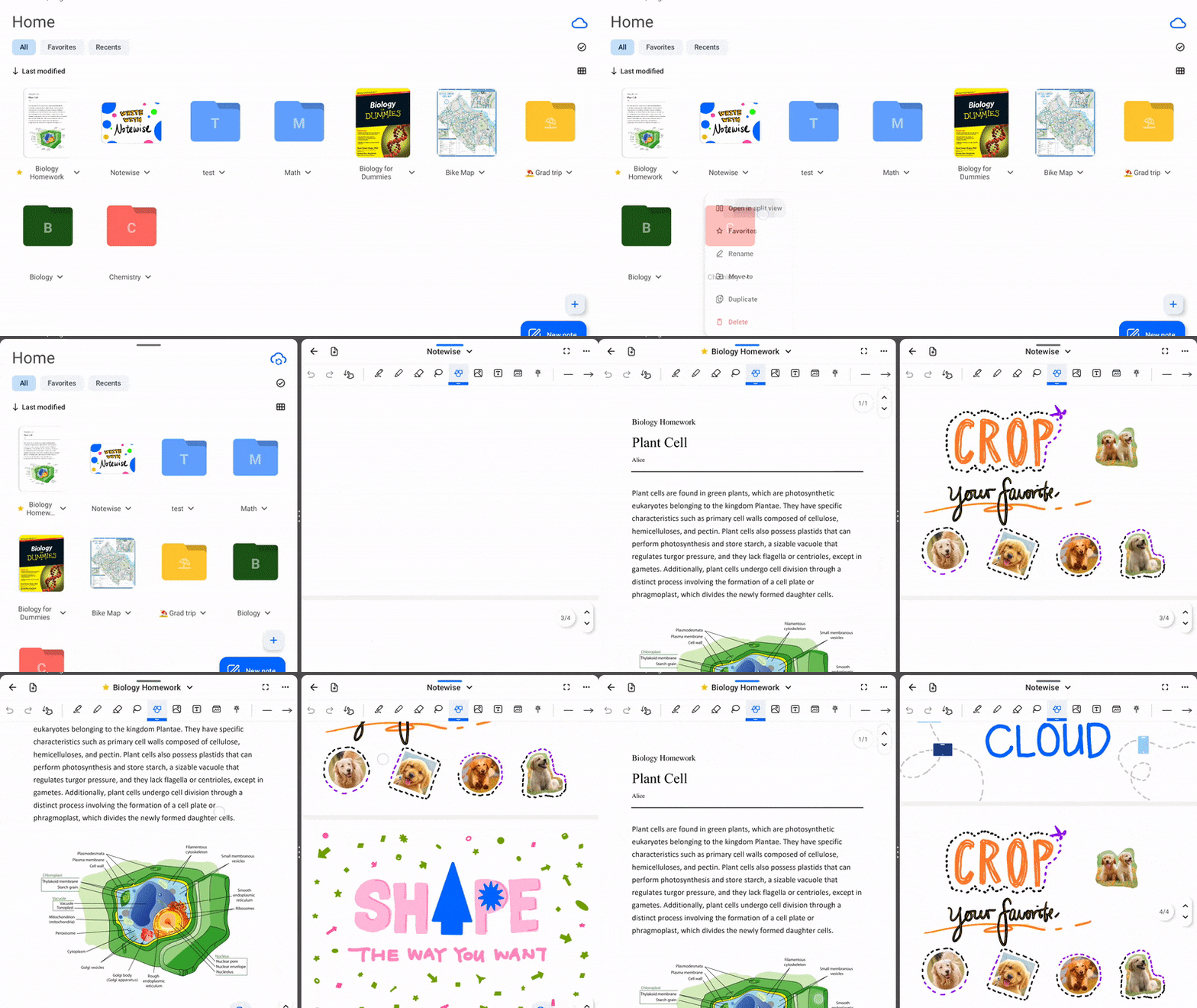
On devices running a version older than Android 12L:
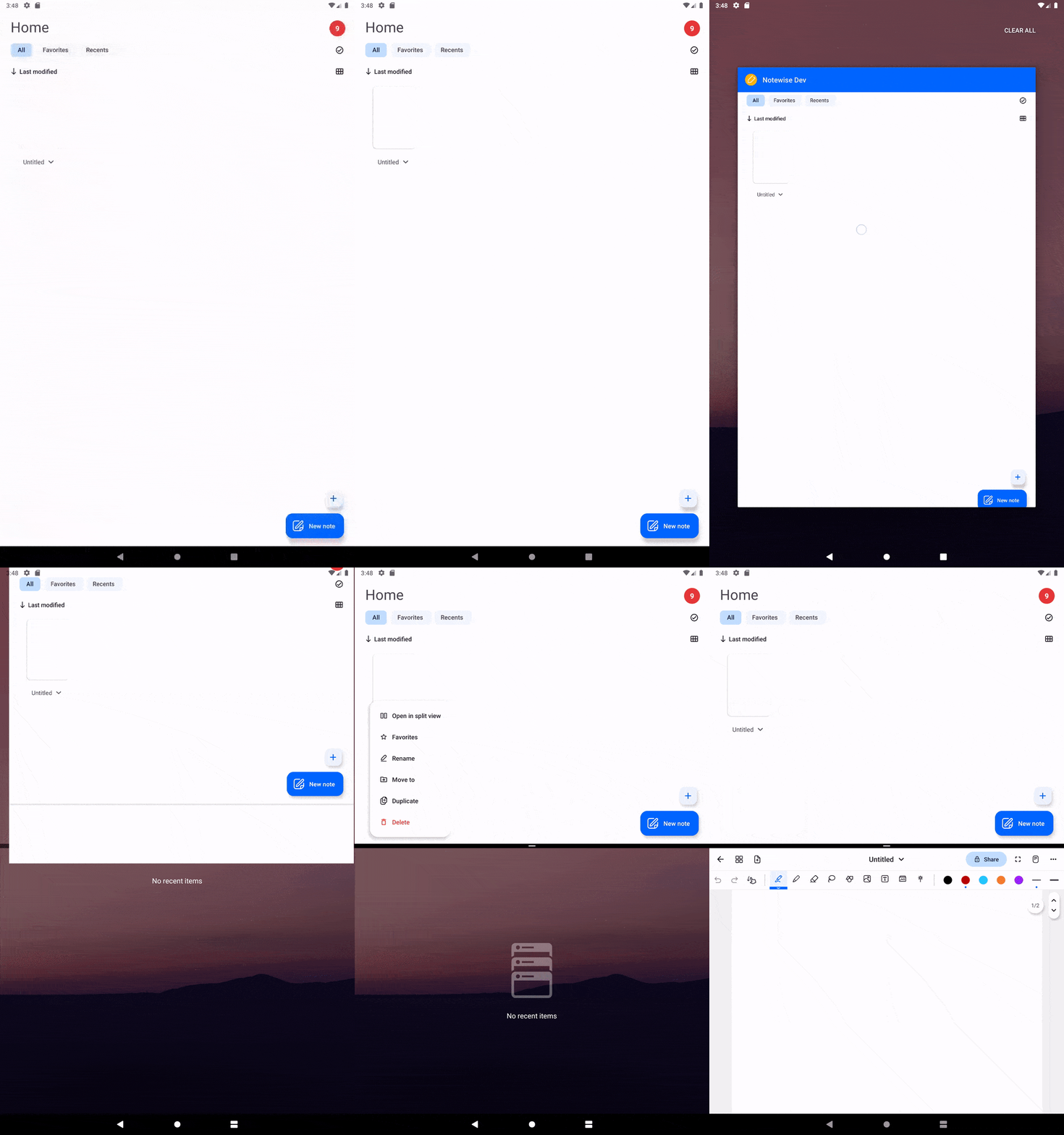
Open your device’s recent apps screen.
Touch and hold Notewise and select the system split-screen option.
Return to Notewise.
Tap the title of the note you want to open.
Select Open in split view.
Not all Android devices support split screen. If Open in split view is unavailable, the feature may have been disabled by your device manufacturer.
Important notes for Vivo OriginOS 6 users
OriginOS 6 may automatically launch Notewise in a system-level multi-window mode. This can interfere with Notewise’s built-in split screen feature (e.g. layout issues or unexpected window behavior)
If the layout looks incorrect or you can’t use split view properly, switch Notewise back to full screen: Go to Settings → Display, Brightness & Eye Protection → App Display Layout → Tap Notewise → Select Original Layout
Was this helpful?
Still need help? Ask the team