Use stylus buttons as shortcuts
Customize Apple Pencil and supported Android stylus buttons in Notewise.
iOS
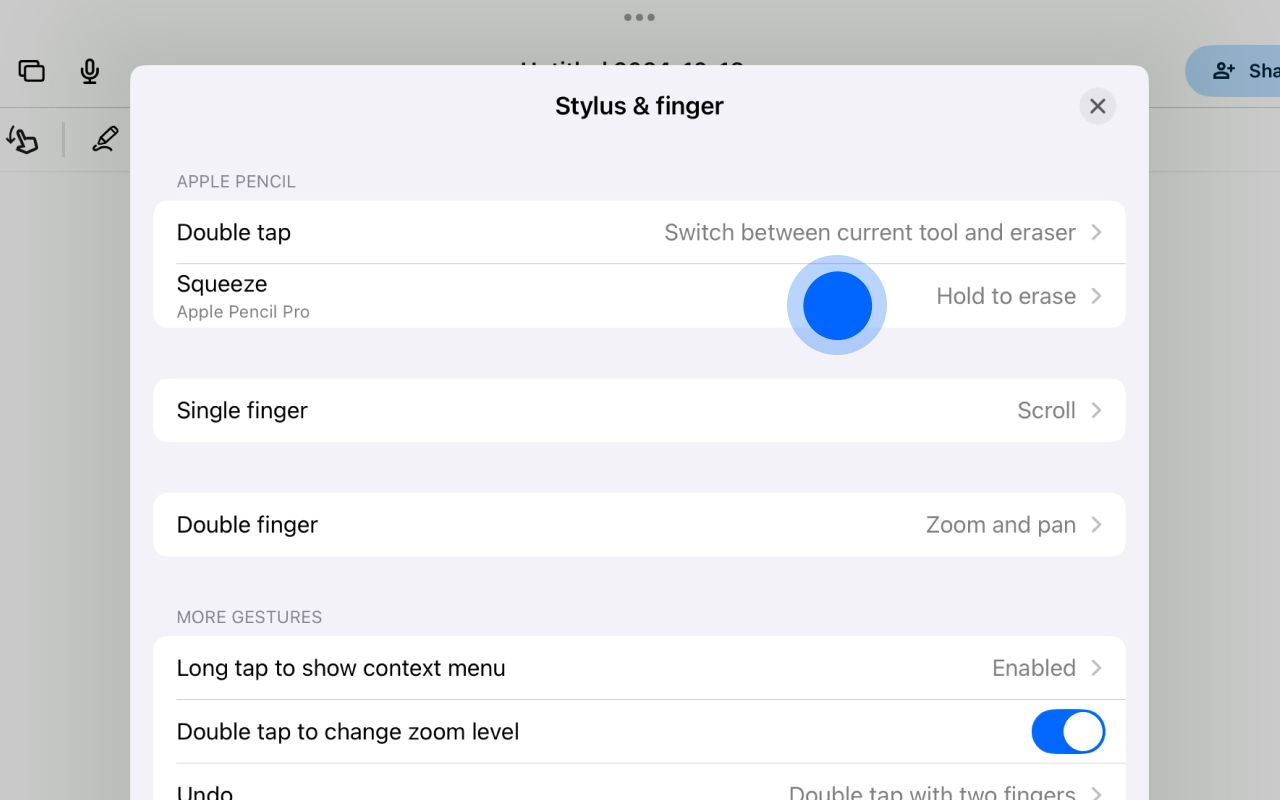
For Apple Pencil, both the double-tap gesture and the squeeze action (available on Apple Pencil Pro) are fully supported. You can customize these actions to suit your preferences, as demonstrated in the screenshot below.
Android
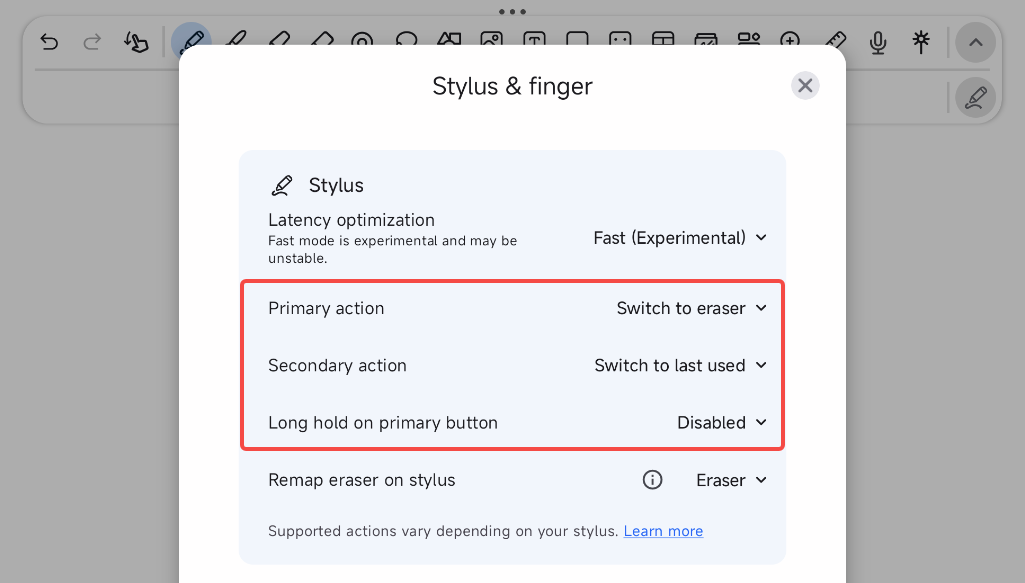
Notewise allows you to customize the primary action, secondary action, and long-hold action for specific Android styluses, enabling a personalized and efficient note-taking experience.
For EMR styluses, the eraser button located on the tail can be set to function as an eraser or reassigned to other actions of your choice, which can be configured in the app's settings.
Below is the list of supported styluses:
Samsung S-Pen
Primary action: single press the stylus button.
Secondary action: double press the stylus button.
Long hold action: long hold the stylus button.
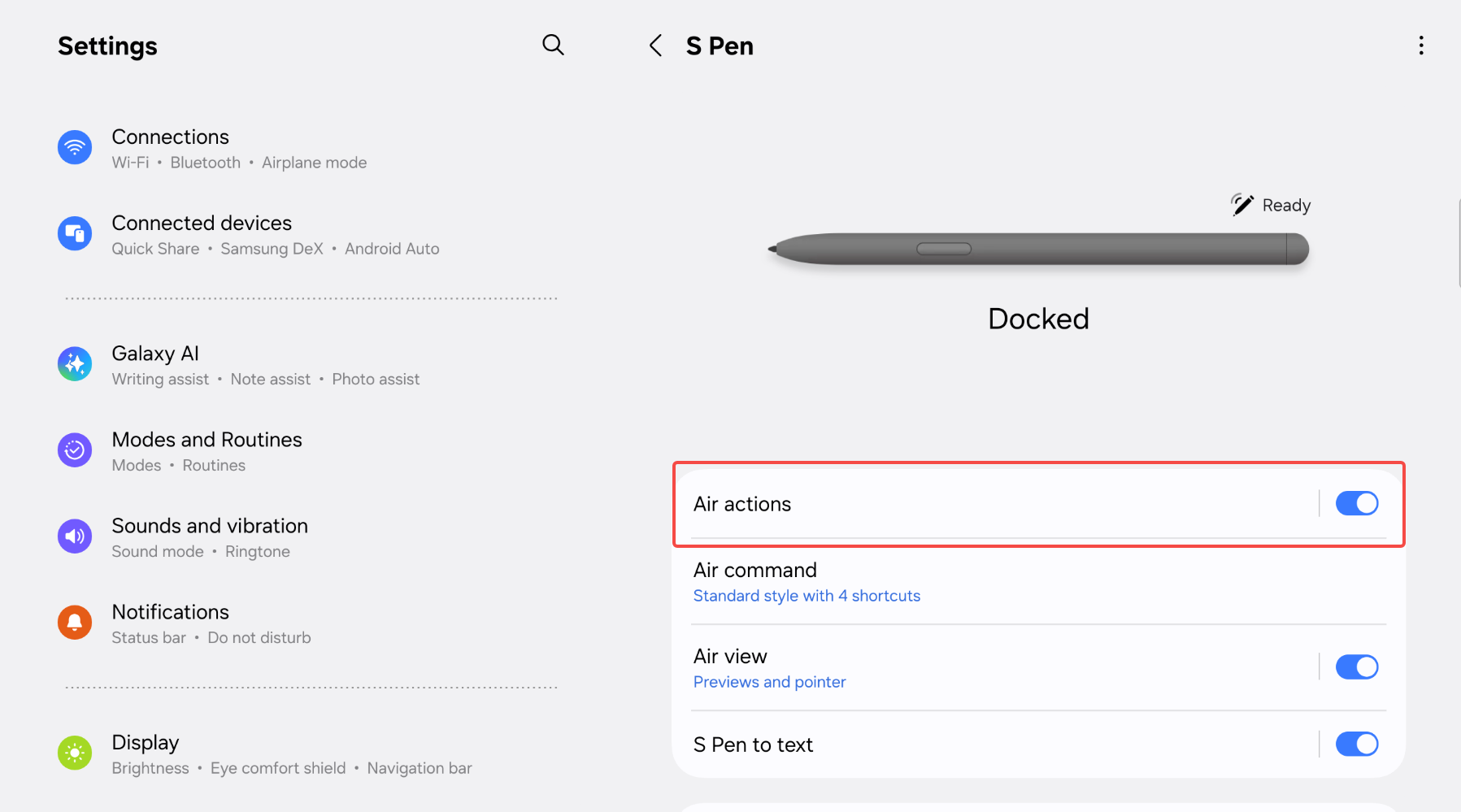
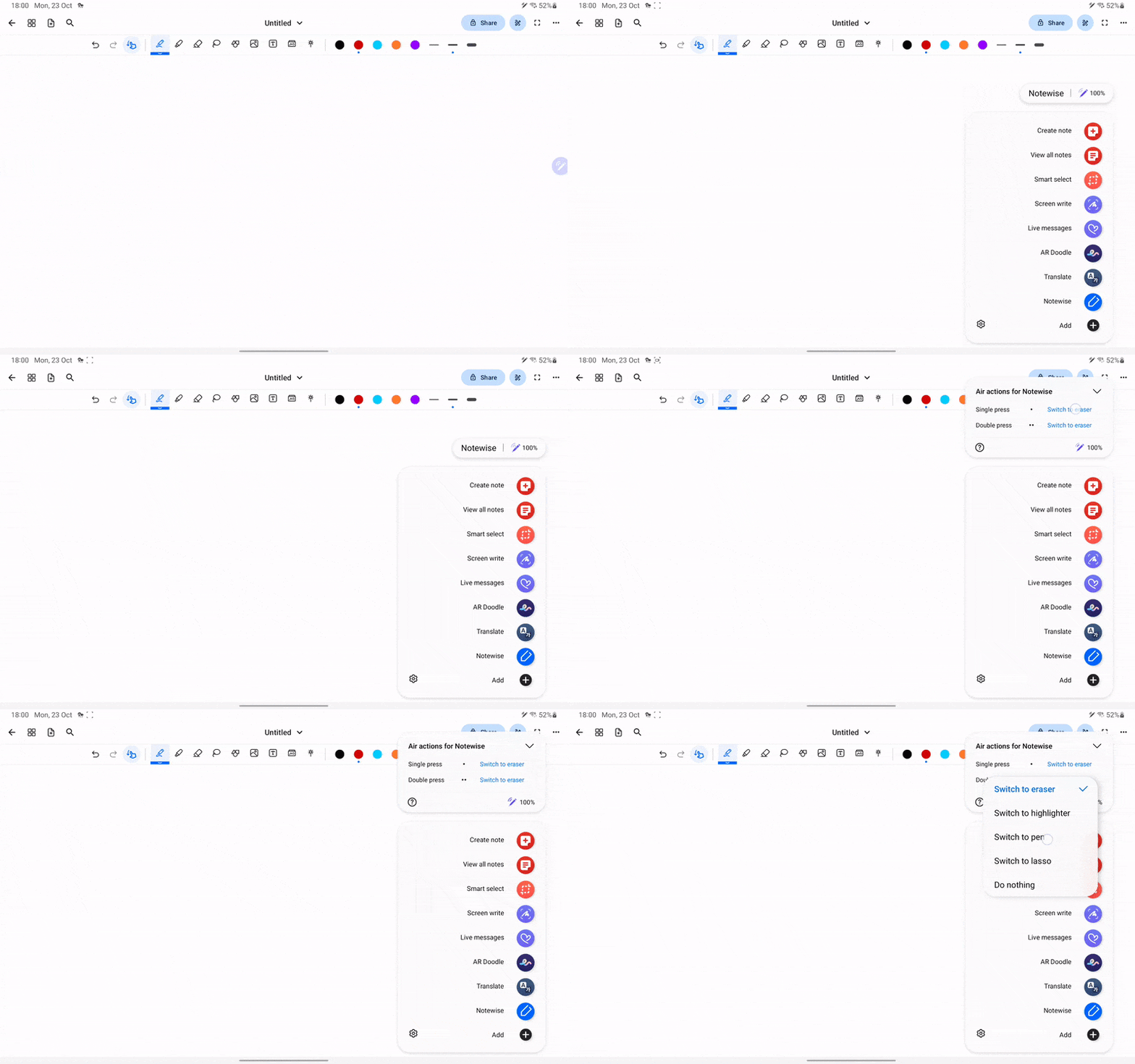
Make sure that you've enabled Air Actions in System Settings:
Make sure that you've enabled Air Actions in System Settings:
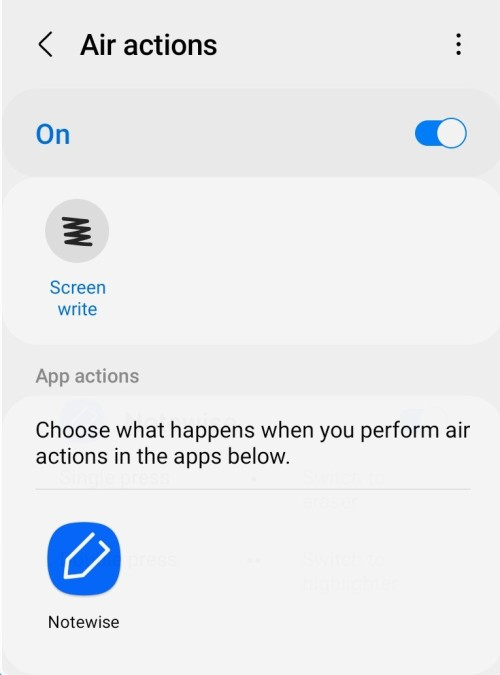
Open your device's Settings > Advance Features > S-Pen > Air actions.
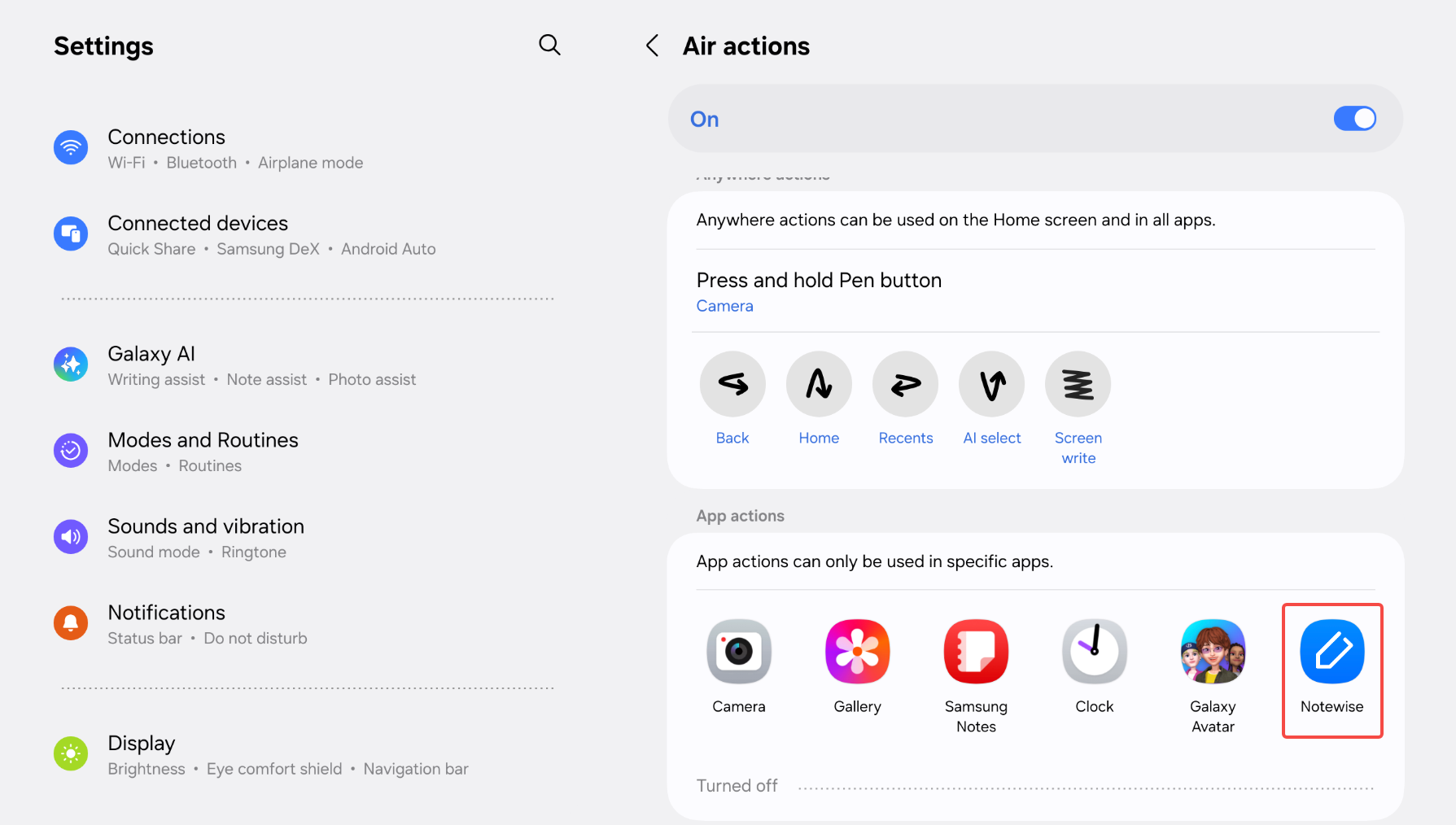
Tap your desired app under Air actions.
Find and tap Notewise. Make sure it's turned on. You can also customise actions for different gestures in the popup.
To learn more, here's a video tutorial from Samsung on Air actions.
Xiaomi Pen
Xiaomi Stylus Pen 1 & 2
Primary action: press the primary button.
Secondary action: press the secondary button.
Xiaomi Focus Pen Pro
Primary action: Double press.
Long hold action: Pinch then hold.
Please adjust your system settings to enable shortcuts in Notewise:
Please adjust your system settings to enable shortcuts in Notewise:
Open your device’s Settings > Stylus & keyboard > Stylus > Actions.
Configure the following settings:
Pinch: Select any action except “Show shortcut panel” or “Off”.
Double press: Select any action except “Off”, and make sure it is different from the Pinch setting.
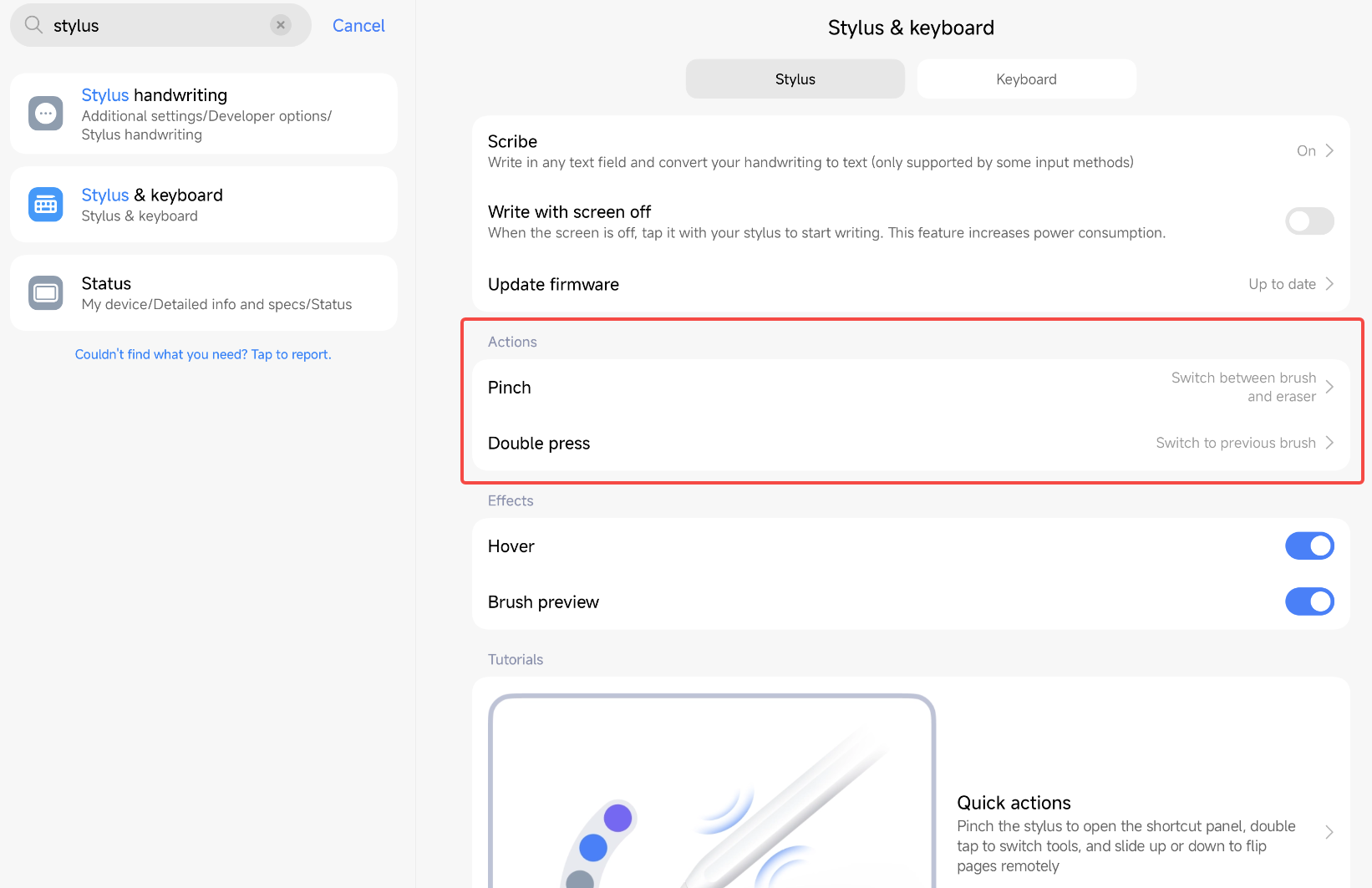
After completing these settings:
The Double press action will be mapped to Notewise’s Primary action.
The Pinch and hold action will be mapped to Notewise’s Long hold action.
OnePlus/Oppo Pen
Primary action: double tap the stylus.
Vivo Pen
Note: Only works on Vivo pens later than Vivo Pencil 2 / iQOO Pencil.
Primary action: double tap the stylus.
Lenovo Pen
Note: Only works on certain Lenovo pens, e.g., Lenovo Precision Pen 3, Lenovo Tab Pen Plus
Primary action: single press the stylus button.
Secondary action: double press the stylus button.
Honor Magic Pen
Note: Only works on certain Honor pens, e.g., Honor Magic Pencil 3, Honor Magic Pen
Primary action: double tap the stylus.
Huawei M-Pencil
Note: For this to work, please disable stylus shortcut in Settings > Accessibility features > Stylus > Double-tap, make sure that "Open shortcut menu" is de-selected.
Primary action: double tap the stylus.
Was this helpful?
Still need help? Ask the team