Show or hide the sidebar in a note
Hide the note sidebar to focus on writing, and show it again when you need it.
Since Notewise 4.1, each note has a sidebar with its sources, tabs (such as Overview, Flashcards, and Podcast), and chat. You can hide it whenever you want to focus on writing.
Hide or show the sidebar
On a tablet in landscape, the sidebar stays open on the left of the note. To hide it, tap the Sidebar button, the first button at the top left of the note. When the sidebar is hidden, it sits next to the back button. Tap it again to show the sidebar. The button stays there even if you move the toolbar to another side.
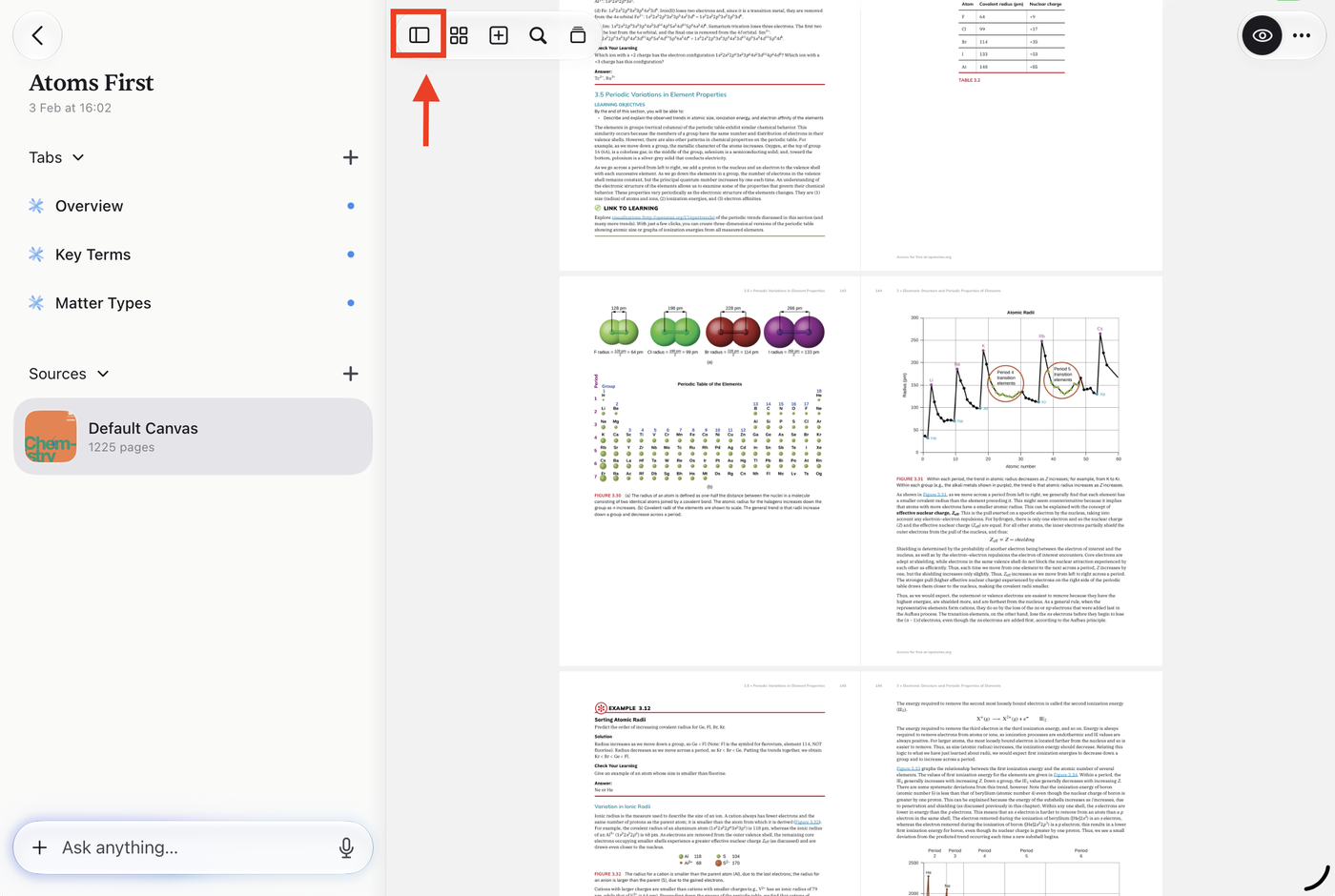
Notewise remembers your choice for your other notes. When you open the chat, the sidebar opens to show it; this does not change your choice.
On a phone, or a tablet in portrait, the sidebar stays closed. Tap the Sidebar button to open it, and drag the note back to close it.
Switch quickly (Notewise 4.2 and later)
Hold the Sidebar button, then slide to a tab, a source, or the chat.
To reduce automatic AI activity, see Can I turn off Notewise AI?
Was this helpful?
Still need help? Ask the team