Using the Ruler
Adjust ruler units, rotate by specific degrees, and use multi-finger gestures to position or dismiss the measurement guide.
Use the Ruler as a guide for measuring and drawing precise lines.
The Ruler is available with Notewise Classic Unlimited and Notewise Cloud plans.
Accessing the Ruler
- Tap the Ruler button in your toolbox to show the ruler.
Using the Ruler
- Use one finger to move the ruler around the screen.
- Use two fingers to rotate the ruler.
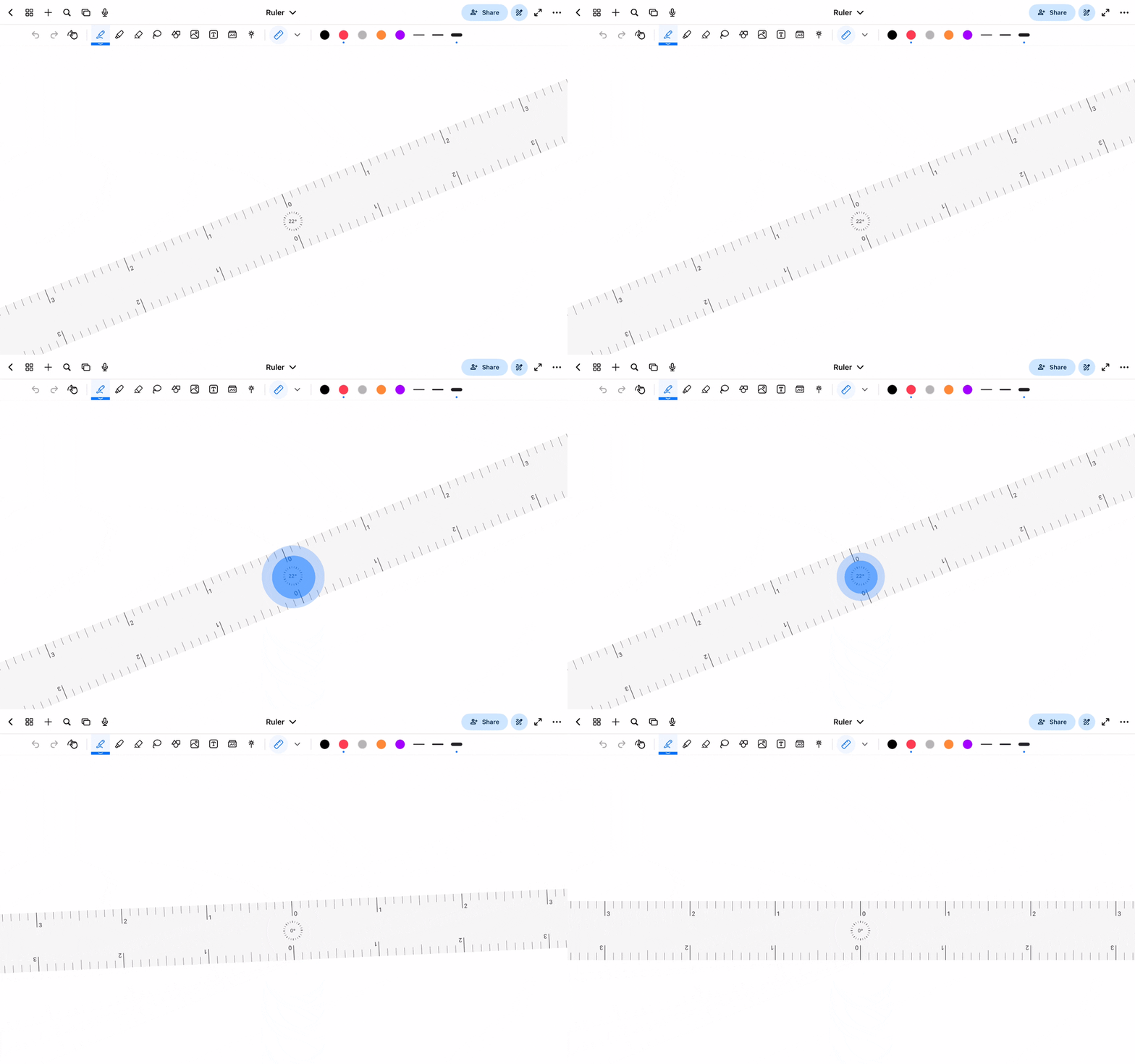
- Tap the compass (the angle shown in the middle of the ruler) to rotate it to the nearest 45º.
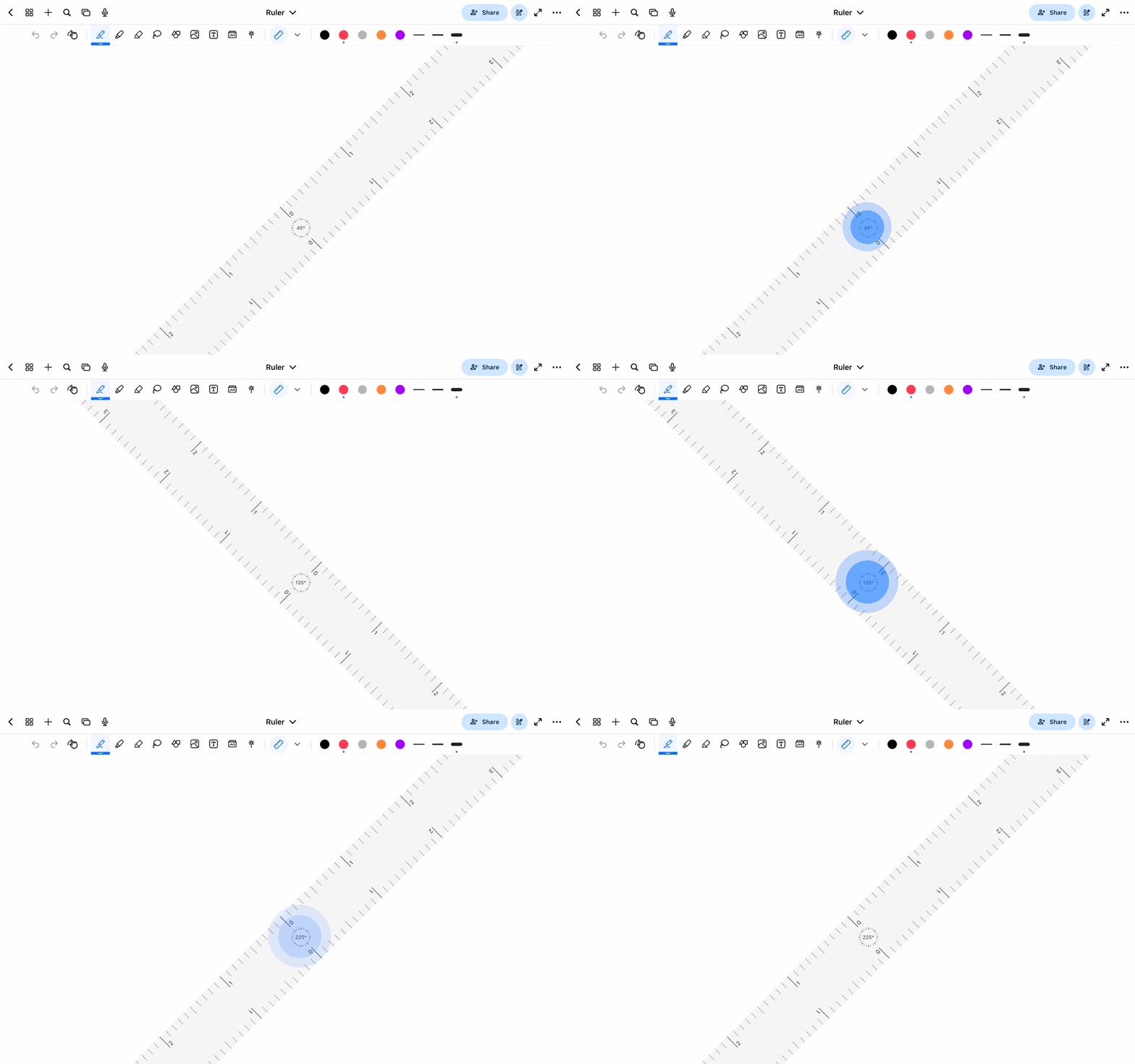
- Double-tap the compass to rotate the ruler 90º counterclockwise.
Tap the compass to rotate to the nearest 45º:
Double-tap the compass to rotate 90º counterclockwise:
Ruler types
Notewise has three rulers: Straight Edge, Protractor, and Triangle. Switch between them with the buttons that appear next to the Ruler in the toolbar, or tap the settings button there to open the Ruler panel.
- Protractor: choose a 180° or 360° protractor.
- Triangle: choose the angles: 45°/45°, 30°/60°, or 60°/30°.
- Ruler units (Straight Edge and Triangle): Metric or Imperial.
Resize the Protractor or Triangle
- Pinch with two fingers to make the Protractor or Triangle bigger or smaller.
- Turn on Fix size in the Ruler panel to keep its size.
Dismiss the Ruler
- Select Ruler icon again to dismiss the ruler.
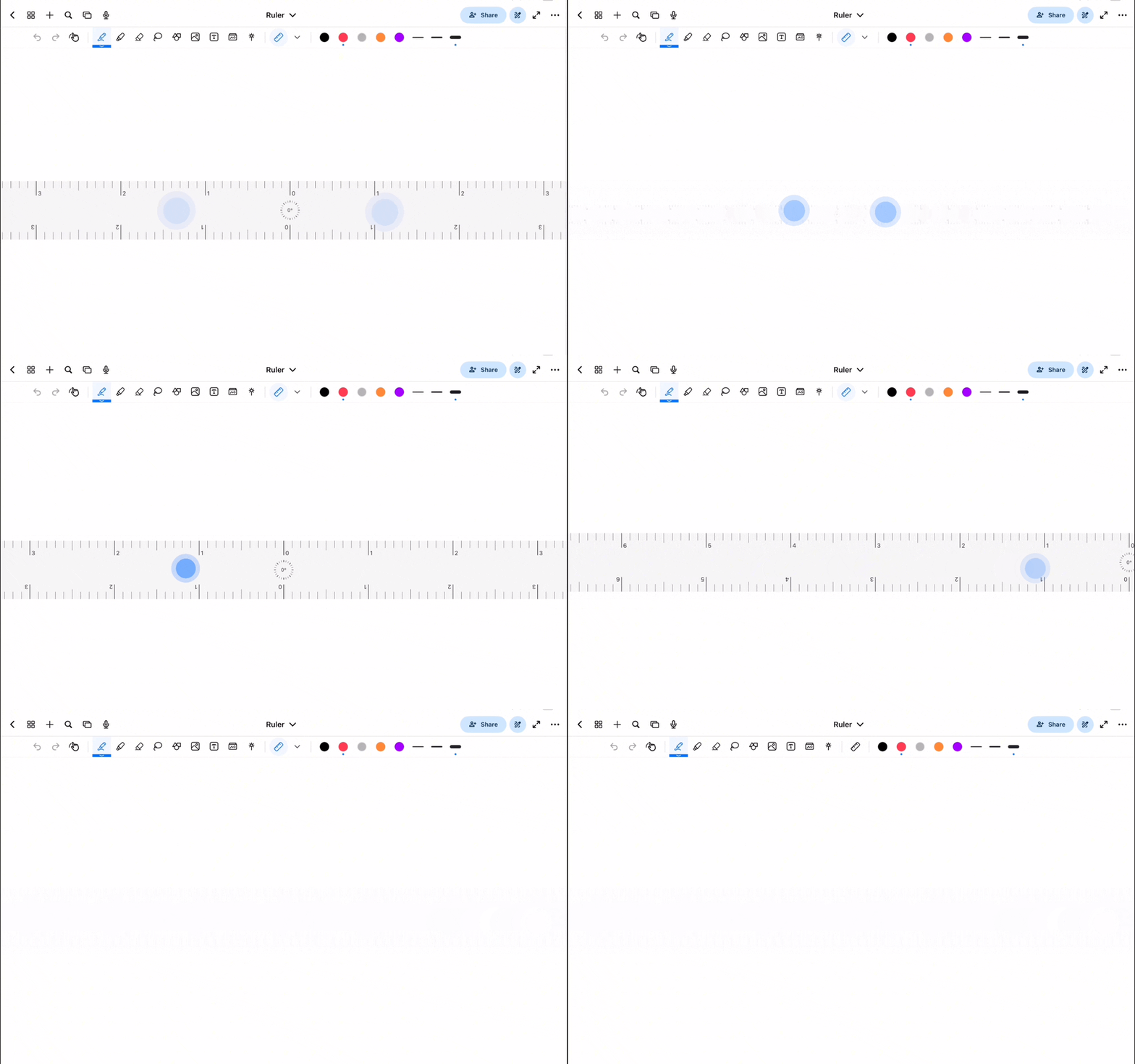
- Pinch with two fingers to dismiss the ruler.
- Drag the ruler to the side with one finger to dismiss.
Pinch with two fingers, or drag the ruler off the screen, to dismiss it:
Adjust Ruler Unit
- Tap the dropdown button beside the Ruler button
- Ruler Units > choose from Metric or Imperial.
- Notewise follows the ISO 216 standard, where a page with A4 template is 210mm x 297mm.
Was this helpful?
Still need help? Ask the team