Hold to draw shapes, curves and straight lines
Learn more about our hold-to-draw feature for shapes, curves and lines.
Pen
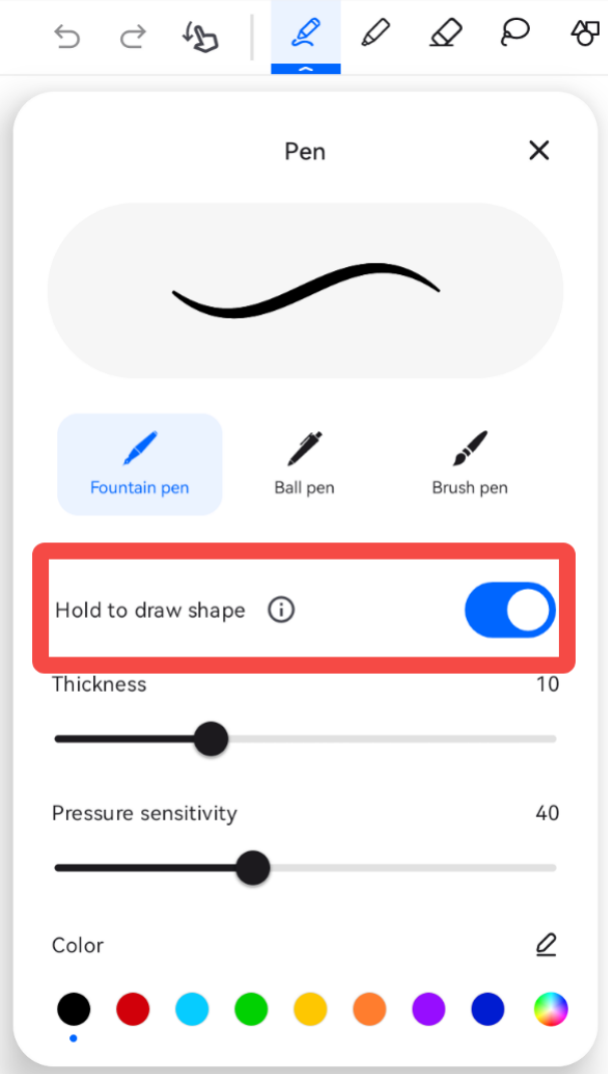
- Enable Hold to draw shape option in pen settings
- Simply draw your shape and hold your stylus when you’re finished drawing. Notewise will then automatically convert your writing into perfect shapes, curves, or straight lines.

Highlighter
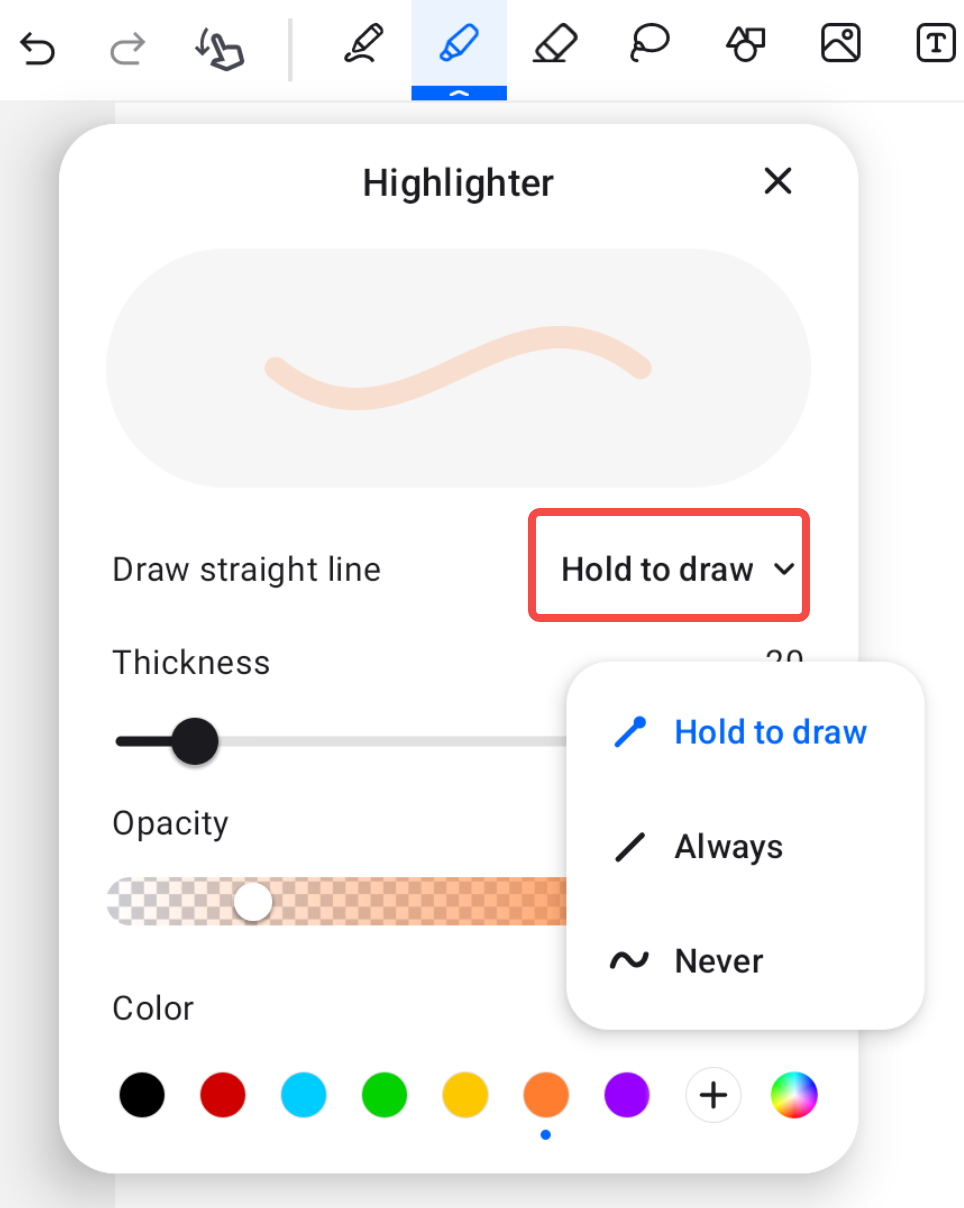
In highlighter settings, select one of the straight line mode
- Hold to draw:Simply draw and hold your stylus when you’re finished drawing. Notewise will then automatically convert your writing into straight lines.
- Always: All highlighter drawings will be in straight lines.
- Never: No automatic conversion into straight lines.
Draw straight line continuously
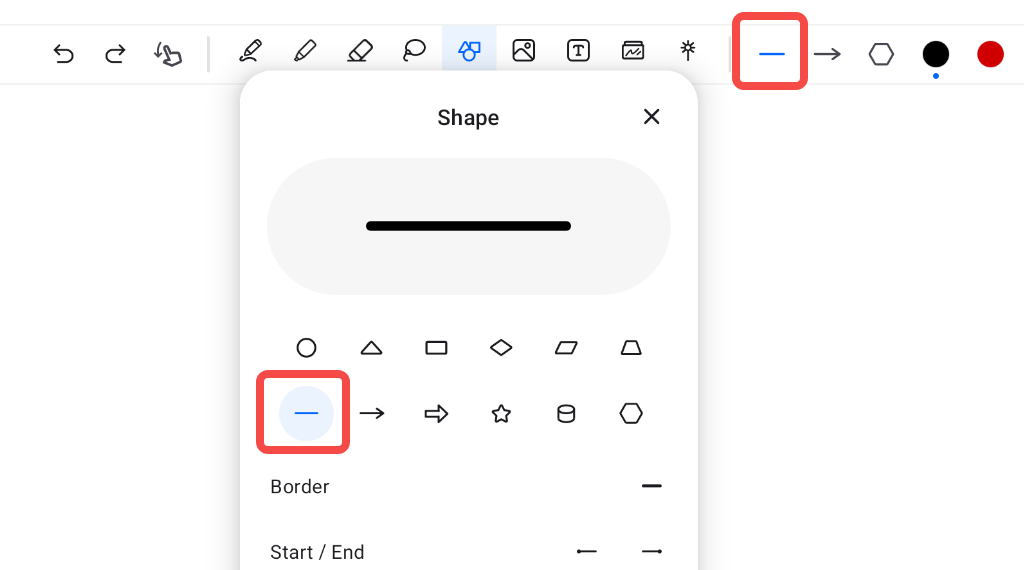
To draw straight line continuously, use the Straight lineinside shape tool settings.
Was this helpful?
Still need help? Ask the team